




Wireless & Cloud-Based: Modern Mobile Printing
Print, scan, and store files from virtually anywhere using select mobile apps and compatible Brother devices. [1]

Brother Mobile Connect
The Brother Mobile Connect6 App puts the power of printing at your fingertips with a user-friendly interface that allows for simple operation and printer management from your smart phone. The App features easy onscreen navigation that allows you to wirelessly print, scan and copy from virtually anywhere6and keep your home and home office running smoothly. Track ink usage through the App by accessing the Brother Intelligent Page Gauge,7 a visual, numerical way to know the amount of ink you’ve used and the amount of ink you have remaining so you will never have to worry about running out of ink in the middle of a large, important, or time-sensitive print job.


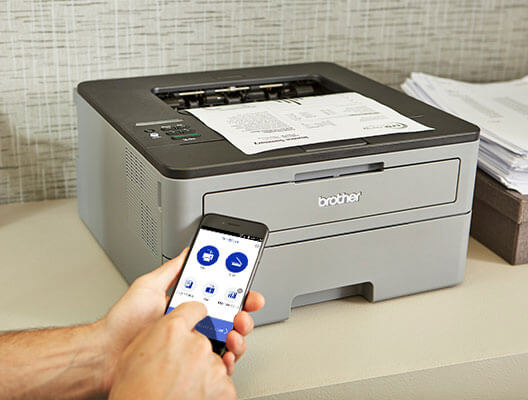
Brother iPrint&Scan
Scan and print from your mobile device with our free iPrint&Scan app. Connect a compatible Brother printer or all-in-one to your wireless network, and scan and print documents from a smartphone, tablet, or laptop. Use files from your device's libraries or choose from cloud accounts[2]. You can also edit, preview and send faxes, preview copies, or check the machine’s status — all from your phone or tablet. [3]
Download and install Brother iPrint&Scan - Windows or Macintosh® computer
Brother iPrint&Scan for PC/Mac provides access to printing, scanning, and workflow functionality. The supported function will vary based on your model's specifications and capabilities.
Click here for a list of compatible models.
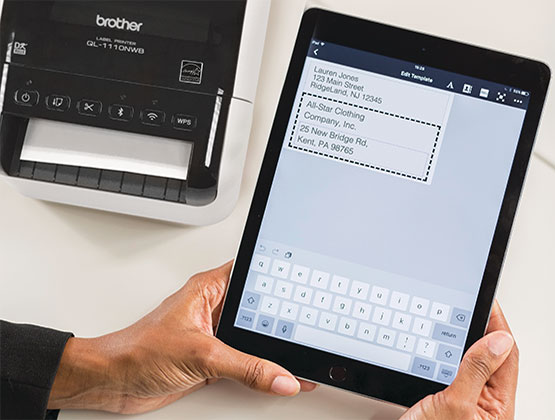
Brother iPrint&Label
Wirelessly print a variety of labels from your iOS® or Android™ mobile devices with our free app, Brother iPrint&Label. Just download the app and it will automatically search for supported devices on your wireless network. From there you can create custom labels, print labels from contact lists, print name badges and photos from your libraries, and so much more. It’s quick and easy labeling that meets the demands of today.
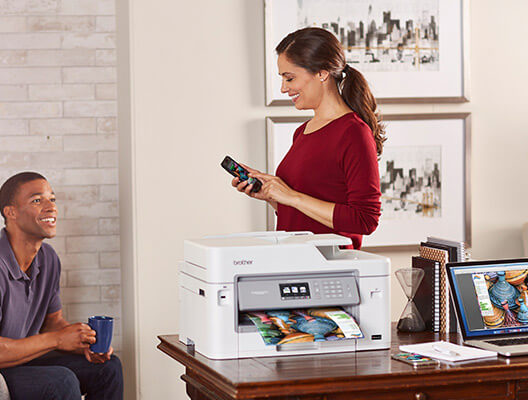
AirPrint®
Ditch the wires and cables with AirPrint. It will automatically find your compatible Brother device and connect. You can print directly from your Mac®, iPhone®, iPad® and iPod touch®, and other AirPrint®compatible Apple® devices on the same network. [4]
Product Registration
Register your Brother product for free product updates and support, news about special offers, and new product announcements.
Brother Creative Center
Downloadable projects like cards, invites, flash cards, and coloring pages.
- Scanning not available on printer models.
- Cloud Services: Requires internet connection, Brother iPrint&Scan download and account with desired cloud service.
- For operating system and device support information, please see the Brother iPrint&Scan page in your device’s application store by clicking a link above.
- AirPrint requires OS X v10.7 or higher or iOS 4.2 or higher. Brother Label Printers require iOS 7.0 or higher.
- All trademarks and registered trademarks referenced herein are the property of their respective companies. Apple, AirPrint, iPad, iPhone, iPad touch, Macintosh, Mac are registered trademarks of Apple Inc. Android is a trademark of Google Inc.
- Requires connection to a wireless network. Brother Mobile Connect free app download is not available in all countries.
- Page Gauge is an estimate for informational purposes only and is available through the Brother Mobile Connect free app. For actual cartridge yield information refer to www.brother.com/pageyield. Feature not available on all models.