



Brother Stamp Creator PRO
Makes Custom Stamps in Minutes
Turning text, signatures, graphics, logos, photos and more into pre-inked, refillable and fast-drying stamps is easy using the Brother Stampcreator PRO.
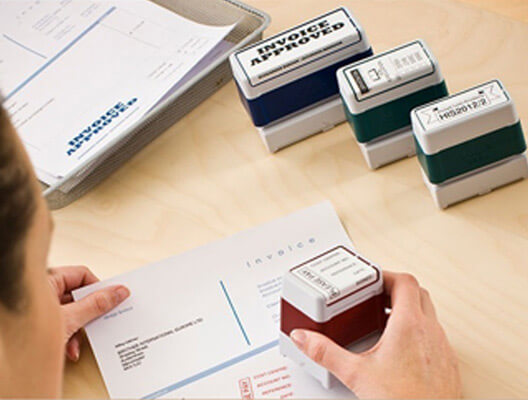
Enjoy Comprehensive Graphic Capabilities
Choose from more than 150 stamp templates and hundreds of built-in images or draw your own frames, lines and circles and import custom graphics to create unique, one-of-a-kind stamps. Stampcreator PRO software is PC and Mac(R) compatible and all TrueType fonts are supported.

High-Performing Hardware for Quick Printing
Each stamp features the highest quality components to ensure trouble-free repetitive use:
- Up to 600 dpi resolution: With a 600 dpi print quality, every stamp impression you make will be clear, clean, and sharp
- Many sizes to choose from: Stamps are available in many different shapes & sizes
- Pre-inked, refillable, and fast-drying: All stamps are pre-inked and refillable...no messy ink pads needed! Ink is fast-drying to prevent smudging
- Durable & easy-to-use: Each stamp's surface has been created using a durable rubber, helping to extend the life of the stamp
- Long-lasting: Stamps will last up to 50,000 impressions with proper re-inking
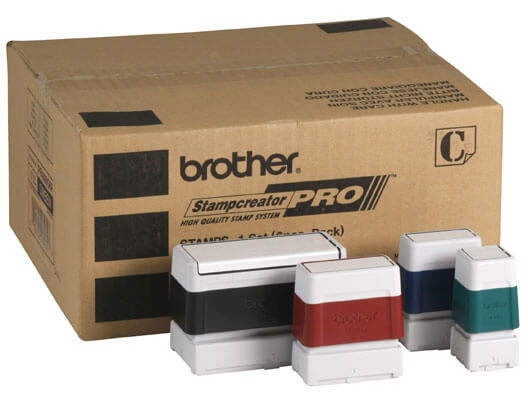
SC-2000USB Specifications
Software Performance, Hardware Performance, and Stamp Features
- PC and Mac compatible software
- Comprehensive graphic capabilities
- Drawing functions (frames, lines and circles)
- 600 dpi resolution
- High quality (600 dpi) ID sticker creation
- Master sheet holder magazine
- Automatic proper stamp size sensors
- Parallel and serial cables included
- 11 stamp sizes (From 0.47"x0.47" to 1.57"x3.54")
- 4 color selections
- Durable rubber surface
- Non-toxic, non-flammable, fast drying
- With proper re-inking, will last up to 50,000 impressions
Let Us Help You With That
Count on us for lifetime product support. Explore ways to contact us, find information on OS compatibility, search for a service center, and more.